Free Professional Price Quote Template for Excel
Prepare professional price quotes for customers with ease, using this simple price quote template for ExcelThis spreadsheet is designed to help you prepare professional price quotes for customers with speed and accuracy.
Do you face a daily challenge of creating multiple written quotations that look professional and include all necessary legal and financial details? Our Price Quote Template simplifies the generation of accurate and professional quotes by giving you a central Settings sheet that acts as a mini-database. This template is designed to streamline your workflow by minimizing repetitive data entry and maximizing calculation accuracy.
As a preliminary caution, you should be comfortable using a spreadsheet. This macro-free template is highly dependent on pre-existing formulas, so be careful not to accidentally introduce errors as you edit or customize it. Download and enjoy!
Price Quote Template
for Excel® 2003+ & Google Docs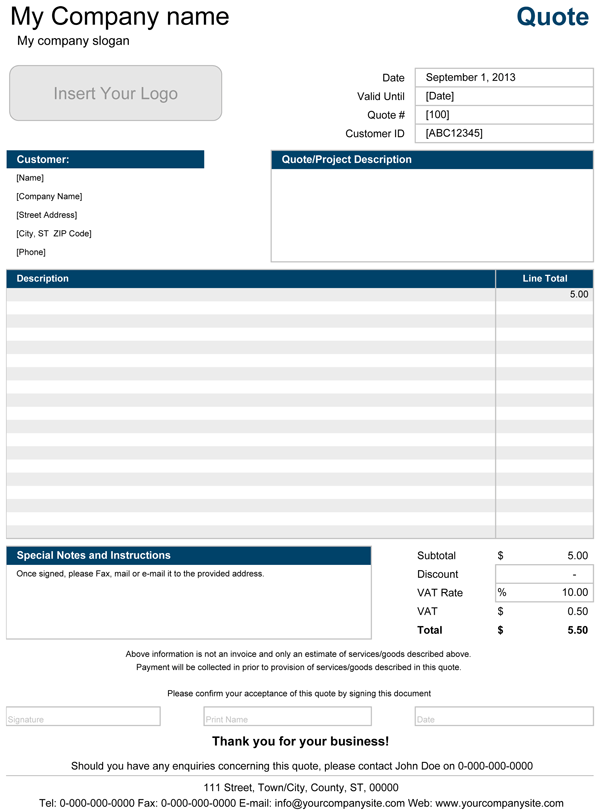
File: XLS
File: XLSX
File: SHEET
1.0.2
Microsoft Excel® 2003 or Higher (PC & Mac)
Not Used
Not Required
Alex Bejanishvili of Spreadsheet123.com
User License Agreement
Contact Us
The 3-Step System to Setup, Generate, and Deliver Your Quote
The strength of this template lies in its robust Settings sheet, which provides a single point of control over your company's data, ensuring consistency across all quotes.
Step 1: Setup - The Central Settings Database
Before issuing your first quote, you must complete a one-time setup on the Settings sheet. This sheet acts as a mini-database, storing all company details that will automatically populate the final quote document:
- Company Details: Enter your full company address, contact numbers, email, and website.
- Branding Control: Use the Enable/Disable drop-down menu to decide whether to print your Company Name or Slogan at the top of the quote. You can also select your preferred color scheme via the Design Picker.
- Country-Specific Settings: Define your Currency Symbol and set your country's applicable VAT/Tax percentage. This saves you from re-entering these values for every new customer.
Step 2: Generate - Building the Quote and Calculations
The main worksheet is where you input the customer details and the work specifics. The template handles the complex math automatically.
- Header Data: You are required to input fields like Quote Date, Valid Until date, a unique Quote #, and the Customer ID.
- Detailed Line Items: Use the table to clearly describe the services or items, along with their quoted prices.
- Automatic Financial Calculations: The spreadsheet uses pre-defined formulas to automatically calculate the Line Total for each item. It then calculates the Subtotal, applies any specific Discount you enter, and calculates the VAT/Tax amount based on the rate you set in the Settings sheet, delivering the final Total Quotation value.
Step 3: Deliver - Choosing the Perfect Output
The template provides two distinct print formats to fit your professional needs, along with essential customer communication fields.
- Dual Layout Options: The template includes two sheets: Price Quote (Portrait layout) and Price Quote (Landscape) (wider, horizontal layout). You can use the format that best suits the length and detail of your line items.
- Required Legal Text: Use the dedicated cells for Terms & Conditions and Special Notes/Instructions to specify payment terms, confirmation terms, and project inclusions or exceptions.
- Final Output Caution: Once all details are correctly filled, do not send the Excel file to your clients. Use your spreadsheet software’s PDF converter/printer function to create a clean PDF file for emailing or printing and mailing to the customer for approval.
Related and Enhanced Quote Templates for Your Needs
If your business requires specialized quoting features, consider one of our more advanced, enhanced templates:

Price Quote with Hourly Rate
Hourly Quote Template (Enhanced): Ideal for service providers, freelancers, and consultants who bill by the hour. This enhanced template includes dedicated columns for Hours and Rate to automatically calculate line totals for all your services. It features a professional layout in both portrait and landscape formats, allows for easy customization of company details, color schemes, and tax settings (e.g., Sales Tax). Use it to present a clear, detailed cost estimate and ensure transparency in service-based pricing.
File: XLS
File: XLSX

Price Quote with Price List
Price List Quote Template (Enhanced): Built for businesses that maintain a large catalog of products or standard services. This template streamlines your quoting process by integrating a separate, central Price List sheet with fields like Catalog #, Description, and Unit Price. Simply enter the Item # and quantity on the quote form, and the details and unit price are automatically populated. It includes three distinct quote layouts, supports Sales Tax, and is designed to handle a high volume of quotations efficiently while maintaining consistency across all your sales documents.
File: XLS
File: XLSX
Frequently Asked Questions (FAQ) about Quotation Templates
What is the difference between a Price Quote and an Invoice?
The key difference lies in the stage of the transaction:
- Price Quote: A pre-sale document. It is a formal offer or estimate of the price for goods or services before work begins. It often has a Valid Until date. It is a commitment on price, subject to the customer's acceptance. Your customer uses the quote to decide whether to proceed.
- Invoice: A post-sale document. It is a formal request for payment issued after the goods have been delivered or the service has been rendered. It confirms the final amount due, the terms of payment (e.g., Net 30), and provides the information needed for the customer to remit payment.
What is the format of a quote?
A professional quote format must clearly present the estimated cost of goods or services. Key components include:
- Quote Header: Your company name, contact information, logo, and the document title ("Price Quote" or "Quotation").
- Quote Details: Unique Quote Number, Issue Date, and Expiration Date (Valid Until).
- Customer Details: The client's name, company, and contact information.
- Line Items: A detailed breakdown of the products or services. This is typically presented in a table showing Description and Line Total (or Quantity, Rate, etc., in enhanced versions).
- Total Summary: Subtotal, applicable taxes (VAT/Sales Tax), discounts, and the Grand Total.
- Terms: Payment terms, delivery timelines, and special notes.
- Acceptance: A space for the customer's signature and date to confirm acceptance.
How to structure a quote?
A well-structured quote follows a logical flow to ensure the customer understands the costs quickly and easily.
- Start with Authority: Place your company header and official quote number/date at the top.
- Define the Scope: Immediately follow with the customer's details and a brief Quote/Project Description so the client knows exactly what the quote covers.
- Detail the Costs: Use a clear, column-based layout for the Line Items. This section is the core of the quote.
- Finalize the Price: Present the summarized costs (Subtotal, Tax, Discount) culminating in the Total price.
- State the Rules: Clearly articulate your Terms and Conditions and instructions for acceptance.
How to convert a quote to PDF to email it to a customer?
It is crucial to send a quotation as a non-editable PDF file to prevent accidental changes or manipulation by the recipient.
- Finalize the Quote: Ensure all fields in your Excel quote template are filled out and accurate.
- Use the Print Menu: In Excel, go to File > Print (or / ).
- Select the PDF Printer: Under the Printer drop-down menu, choose a PDF creation option such as Microsoft Print to PDF, Adobe PDF, or Save as PDF (this option is common in newer versions of Excel).
- Save the File: Click Print or Save and choose a location to save your PDF.
Note: The instructions section on your templates specifically advises: "Do not send an Excel Quote file to your clients, use PDF converter/printer to create a PDF file..."
How to create a simple quotation?
A simple quotation can be created in minutes using the main Quote Template. The simplest structure requires you to focus on two columns:
- Description: Enter a brief description of the product, service, or project component.
- Line Total: Enter the corresponding total price for that item.
The template handles the remaining calculations, such as summing the Subtotal and calculating the Sales Tax/VAT based on your settings, to produce the final quote.
Quote Template in Excel vs. Word
| Feature | Excel Template | Word Template |
|---|---|---|
| Calculation | Automatic (Subtotals, Taxes, Totals) | Manual (must be calculated separately) |
| Layout/Design | Fixed, professional, and consistent (less risk of messing up formatting) | Highly flexible, but prone to formatting errors and layout shifting |
| Data Handling | Excellent for creating large price lists and integrating data (as in your Price List template) | Poor/Non-existent data handling |
| Suitability | Ideal for virtually all businesses that need accurate calculations and consistency. | Best for purely text-based, highly customized legal documents or simple letters. |
Conclusion: Excel is the industry-standard choice for creating quotes due to its ability to perform instant, accurate calculations, ensuring you and your client always see the correct Grand Total.
Important Template Cautions and Limitations
The Macro-Free Promise
This template is designed for simplicity and security. It is macro-free and has no online connectivity. It cannot integrate with or pull data from your accounting software or a live product database.
Customizing Formulas
The subtotal and final total calculations are based on formulas in hidden cells. If you need to add or remove line items or columns, you must take care to
copy entire rows and ensure all formulas still point to the correct cells. Introducing new rows or deleting cells without care can break the automatic calculation logic.