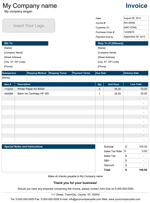
Purchase Order Template
Create printable order forms, using our purchase order template for Excel - by Alex Bejanishvili | Updated 9/3/2020Streamline your purchase order process and increase bottom-line savings!
For all the businesses involved in procurement such as transportation, manufacturing or warehousing, it is important to follow good inventory management practices to increase the bottom-line savings. Purchase Order is that one important practice that can bring measurable benefits. Typically, for more specific demands and price clarity buyer generates a purchase order which a seller accepts if he is able to supply the requested material with the required specifications and prices. Once the payment is received, the seller ships the material. Buyer can check the material and invoice against Purchase Order.
If you have been managing your purchasing requirements manually on papers and are struggling to track them every time you receive an inventory then Spreadsheet123's Purchase Order template can help you streamline purchase order process for your business. You can easily record the quantity and price of the products required along with shipping details and other information.
This template can be used by any start-ups or other businesses managing low to medium volume of purchase transactions. This template is really a good substitute to an expensive procurement software. Whether you run your business single-handedly or you have a team you can use this template to quickly create professional Purchase Orders.
Purchase Order
for Excel® 2003+
File: XLS
File: XLSX
1.0.1
Microsoft Excel® 2003 or Higher (PC & Mac)
Not Used
Not Required
Alex Bejanishvili of Spreadsheet123.com
User License Agreement
Contact Us
How to use purchase order template
Begin by downloading the template and setting up your company by providing basic details like Company Name, Company Slogan, Company Address. This template provides a provision to select the default currency by selecting a country currency symbol from the drop down menu under the country specific settings. Here you can set the relevant tax type and sale tax rate. It also has a inbuilt design picker, where you can choose a colour that is most appropriate for your company. And if this is not enough you can also use Excel's Themes or colours that can be found in the Page Layout ribbon available in Excel 2007 and above.
Once the settings are specified, go to the second sheet named "Purchase Order" and customise it by inserting your logo on the top. Also specify the details of vendor, whom you want to send this Purchase Order and shipping information like shipping mode, method, terms and delivery date.
After this record the information of the products along with required details like code, quantity and price. In case you have agreed on some discounts with your vendor then you can simply add discounts at the end of product specification along with Shipping and Handling Cost and Sub Total amount is computed automatically.
If you have some instructions for the Vendor for any particular Purchase Order then you record that in "Notes and Instructions" area.
Purchase Order Pro
Professional 1.0.1
.ZIP
Microsoft Excel® 2003 or Higher (PC & Mac)
Not Used
Not Required
via Email 24x7
Visit Support Page
- Unlocked - so that you can customize it just a little more.
- Contains Fields for Logo & Company info
- Ability to insert more rows
- Technical Support (for 90 days)
- 2 Bonus Spreadsheet Included
Bonus Downloads

Purchase Order with Price List
Slight modification of the original purchase order with addition of a price list, which can contain all items that you purchase most frequently to ease creation of the purchase orders and save time. This version lets you enter the products just by selecting them from the drop-down list in the "Product Name/Description" section and also populate corresponding cells with product number and unit price.
View Screenshot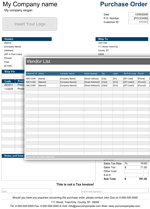
Purchase Order with Vendor List
Another modification, which lets user to use purchase order with more than just one vendor as well as create and assign price lists for specific vendor. This means that you can have as many vendors on your vendors list as necessary and create price list which is specific only to the particular vendor, so that when you create your purchase order, you only need to pick the vendor from the list and the software automatically selects the price list that corresponds to a vendor you have picked.
View ScreenshotRecent Questions
What is Subtotal and Purchase Order Sub Total? Subtotal is the sum of Total Product costs and PO Sub Total is calculated by subtracting the Discount from subtotal and adding the Shipping and handling charges along with any other associated costs.
Just remember not to delete formulas that column Line Total contains as well as formula from sub-column Sub Total, Sales Tax, Sub Total that contain currency symbols. Once you become more familiar with the template you can simply protect these columns from unnecessary changes using Excel's Protect Sheet option. For recording more products on your list, you can simply insert rows in between, as per your requirement.
We recommend you to send a PDF version of your invoice instead of excel file. You can use PDF converter or printer to create a PDF file for Microsoft Excel 2010 and earlier or use built in PDF converter of Excel 2013. Alternatively you can also print it and send it by mail service or FAX.
Function used in template
- SUM(number1, [number2], [number3], [number4], ...)
- IF(logical_test, [value_if_true], [value_if_false])