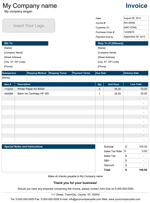
Account Statement Template
Simple accounts payable ledger management system for Excel - by Alex BejanishviliSpreadsheet123's Account Statement is an excellent way of creating a summary of all the sales made to the customer. You can send Account statement (billing statement) of the entire overdue balances to the customers or as per the agreed frequency like weekly, monthly etc., based the number of invoices raised in a period. Typically, Account Statements are used by the customers and vendors who have previously agreed upon the frequency of payment. Usually if your customer has no overdue balances, they do not need it, but can send them monthly billing statements, if they specifically request for it for their bookkeeping.
In this template, we provide single entry bookkeeping method, for the business who have either just started or have medium to low volume of transactions, which presents a really good substitute to an expensive bookkeeping software. With account statement, we have uncomplicated the entire process. You can download and setup one for your business quickly and easily. In addition, account statement can be used as corresponding document with most Spreadsheet123's invoice templates that share similar design and can go side-by-side with each other.
Account Statement
for Excel® 2003+, OpenOffice & Google Docs
File: XLS
File: XLSX
File: OTS
File: SHEET
1.0.5
Microsoft Excel® 2003 or Higher (PC & Mac)
Not Used
Not Required
Alex Bejanishvili of Spreadsheet123.com
User License Agreement
Contact Us
Using Account Statement
Begin by downloading the template and setting up your company by providing basic details like Company Name, Company Slogan, Company Address. This template provides a provision to select the default currency by selecting a country currency symbol from the drop down menu under the country specific settings. It also has a design Picker, where you can choose a colour that is most appropriate for your company.
Once the settings are specified create a list of transactions on the second sheet named Billing Statement. You can begin by writing any previous balances that needs to be taken forward in the current statement and if there are no previous balances then you can write zero over there. After this record other transactions organized by dates which includes all the invoices raised, any overdue charges or payments received. For writing the amount, use the column named "Charges" for invoice amount and charges and for the payments received, use the column named "Credits". With each transaction, you will see the overdue balance in the column "Line Total". Just remember not to delete formulas that column "Line Total" contains as well as formula in sub-columns "Charges" and "Credits" helps to display the currency symbols. Once you become more familiar with the template you can simply protect these columns from unnecessary changes using Excel's Protect Sheet option.
The overall Account Summary is displayed on the top right of Account Statement.
What is Line Total?
Line total is the actual overdue amount at the end of each transaction recorded in Account Statement.
What is the Total Balance Due /Account Current Balance?
Total Balance Due is the difference between the sum of previous balancesand new charges less total credits within agreed statement period.
We recommend you to send a PDF version of your invoice instead of excel file. You can use PDF converter or printer to create a PDF file for Microsoft Excel 2010 and earlier or use built in PDF converter of Excel 2013. Alternatively you can also print it and send it by mail service or FAX.
Function used in template
- IF(logical_test, [value_if_true], [value_if_false])
- ISBLANK(value)
- OFFSET(reference, rows, cols, [height], [width])
- SUM(number1, [number2], [number3], [number4], ...)